Edit photos with AI on your phone, using your own PC's GPU
The photos are on your phone; the graphics card is in the computer at home. Kokon joins the two: it runs the image model on your computer and opens in your phone's browser, with a layout made for the phone. No cloud, no account, nothing to install on the phone. Updated October 24, 2026.
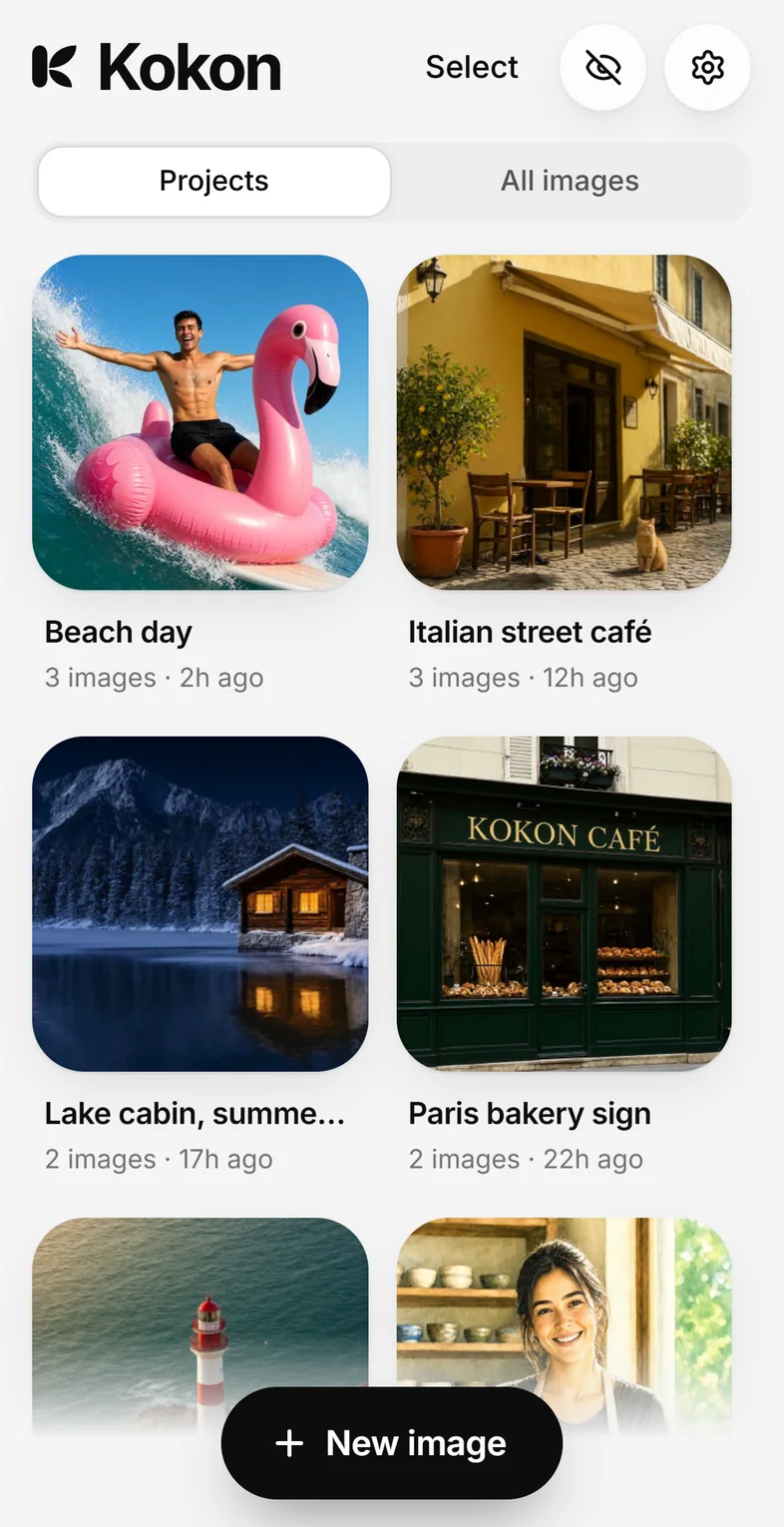
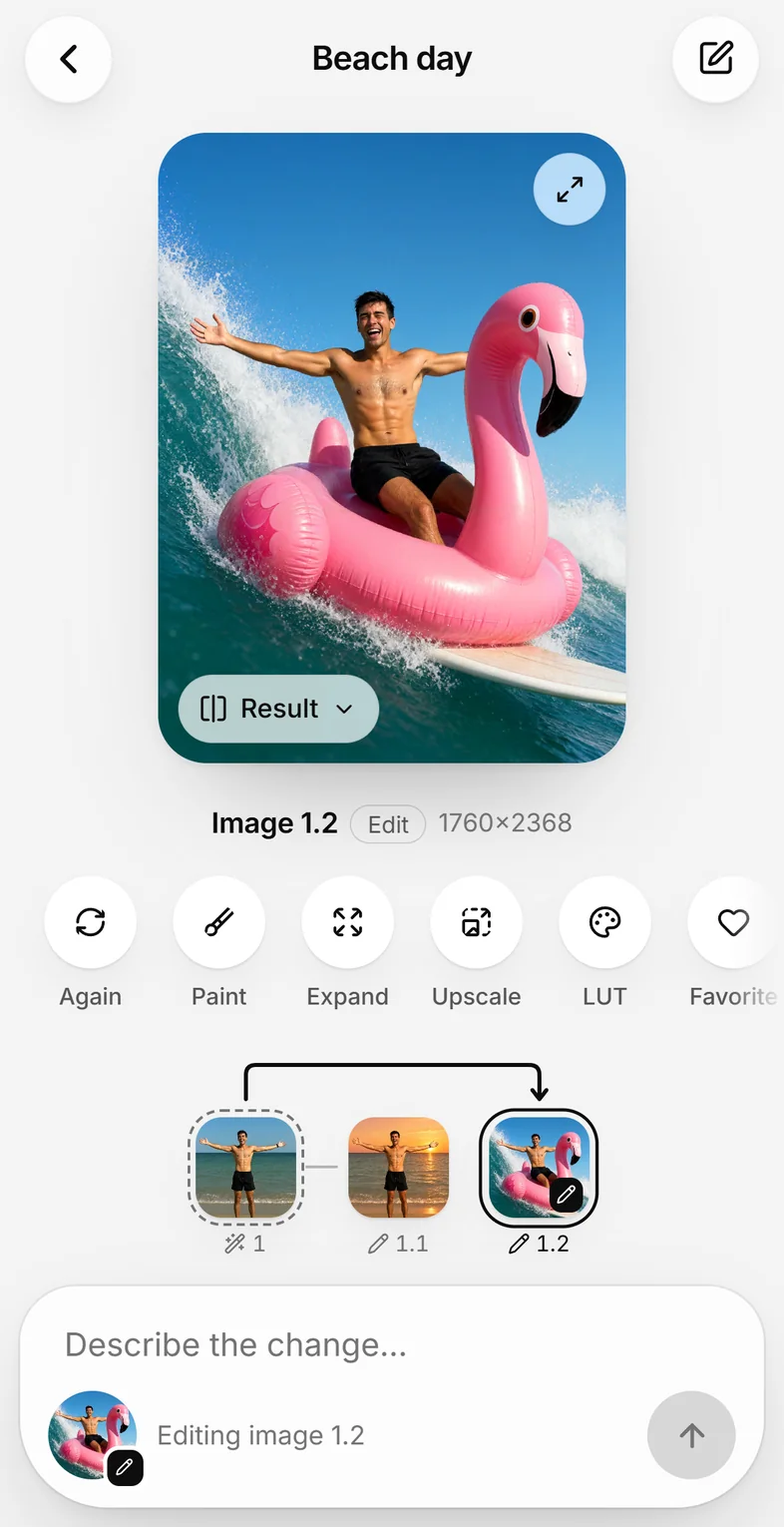
Kokon on an iPhone. The images are made by the computer at home. Watch the video.
The usual way: ComfyUI on the network
If you already run image models locally, you have probably tried this: start ComfyUI (or Forge, or A1111) with --listen, find the computer's IP address, type it into the phone's browser, and use a desktop interface on a small screen. There are good mobile front ends for ComfyUI, as custom nodes or separate apps, but each is one more thing to install and keep in sync, and ComfyUI has no password of its own: anyone on the network can use it, so the advice is always "put it behind a VPN".
That's fine if you enjoy building it. If you just want to edit the photo you took five minutes ago, it's a lot of setup.
The Kokon way: a switch in Settings
- Install Kokon on the computer with the graphics card. It downloads the model (Qwen-Image 2.1) and sets it up for your GPU.
- Open Settings → Other devices, choose a password and click Set and turn on.
- Scan the QR code with the phone's camera and sign in once. The browser stays signed in for 90 days.
- Add Kokon to the home screen: on iPhone, Share → Add to Home Screen; on Android, the browser's menu → Add to Home screen.
Then pick a photo from the phone's gallery or camera, describe the change ("remove the people in the background", "make it a snowy night"), and the computer sends the result back. Every edit is a version you can swipe through, compare or undo, and your projects are the same on the phone and on the computer.
Side by side
| Kokon | ComfyUI + a mobile front end | |
|---|---|---|
| Setup on the computer | One installer; the model is chosen and downloaded for you | ComfyUI, model files, workflows, a custom node or app |
| Connecting the phone | Settings → Other devices, scan a QR code | Start with --listen, type the IP address |
| Password | Built in, off until you set one; 5 wrong tries make a device wait | None built in; add-ons or a VPN |
| On the phone | A layout of its own: projects, swipe between versions, photos from the camera roll | Depends on the front end; most show workflows and a queue |
| Flexibility | One tested model, for editing and creating photos | Any model, any pipeline, video |
If you need custom pipelines, ComfyUI is still the better tool; see when to stay with ComfyUI.
Away from home
Install Tailscale (free for personal use) on the computer and the phone, and open Kokon by the computer's name from anywhere. Tailscale encrypts the traffic. Never open Kokon's port on your router. The setup guide has the details.
No screen on the computer?
Kokon also runs as a server: kokon-service on Linux, or the Docker image for NVIDIA cards (docker compose up -d). The phone works the same way. See Linux and Docker in the guide.
What you need
| Works | Recommended | |
|---|---|---|
| Windows or Linux + NVIDIA | 12 GB of VRAM (8 GB in beta) | 16 GB or more |
| Windows or Linux + AMD / Intel Arc | 12 GB of VRAM, Vulkan (beta) | 16 GB or more |
| Mac | Apple Silicon, 16 GB, macOS 15 (slow) | 32 GB or more |
| Phone, tablet, laptop | Any modern browser, on the same network or on Tailscale | |
The phone does none of the work, so its speed doesn't matter. On an RTX 5070 Ti an edit takes about 24 seconds at 1.5K.
Questions
Can I use my PC's GPU to make AI images from my phone?
Yes. Install Kokon on the computer with the graphics card, open Settings → Other devices, choose a password and scan the QR code with the phone. The phone opens Kokon in its browser; the computer makes the images.
Do I need ComfyUI or Python?
No. Kokon is one installer for Windows, macOS and Linux. It downloads the model, picks the settings for your GPU, and serves its own phone interface.
Does it work on Android and iPhone?
Yes, in any modern browser: Safari on iPhone and iPad, Chrome or another browser on Android. You can add it to the home screen like an app.
Can I use it away from home?
Yes, through Tailscale or another VPN. Never open Kokon's port on your router.
Is it safe?
Access is off until you set a password, the password is stored only as an Argon2id hash, and 5 wrong tries make that device wait. On a shared network, use Tailscale, which encrypts the traffic.
Does the phone do any of the work?
No. The phone only shows the interface and uploads the photo. Speed depends on the computer: about 24 seconds per edit on an RTX 5070 Ti.
Try Kokon
Free and open source for Windows, macOS and Linux, and as a Docker image for NVIDIA. Kokon 0.11 or newer.