How to run Qwen-Image 2.1 locally on Windows and Mac
No Python, no ComfyUI, no cloud. One installer, a model download, and you edit photos by describing the change. Updated October 10, 2026.
What Qwen-Image 2.1 is
Qwen-Image 2.1 is the open-weights image model from Alibaba's Qwen team. One model both creates images from text and edits existing photos from an instruction ("remove the people", "make it a snowy night", "change the sign to say…"). It leads the open-weights image-editing rankings, and the official Turbo version makes an image in 8 steps, fast enough to use on a consumer GPU.
Most guides run it through ComfyUI: install Python, add custom nodes, download several model files and load a workflow. That works, but it is a lot to set up and keep working. This guide uses Kokon, a free, open-source desktop app that does all of that for you.
What you need
| Minimum | Recommended | |
|---|---|---|
| Windows + NVIDIA | 12 GB VRAM (RTX 3060 12 GB, 4070, 5070) | 16 GB or more (RTX 4080, 5070 Ti, 4090, 5090) |
| Windows + AMD / Intel Arc | 12 GB VRAM, Vulkan (beta) | 16 GB or more |
| Mac | Apple Silicon, 16 GB unified memory, macOS 26 (slow) | 32 GB or more, Pro/Max/Ultra chip |
| Disk | 15 GB free | 25 GB free |
8 GB cards are not supported well: the model is large, and 12 GB is the smallest size that gives good results.
Step 1: Install Kokon
Download the latest release from GitHub:
- Windows:
Kokon_<version>_x64-setup.exe(about 35 MB). It installs for your user only, no administrator rights. The beta is not code-signed yet, so if SmartScreen warns, click More info → Run anyway. - Mac (Apple Silicon, beta):
Kokon_<version>_aarch64.dmg. Drag Kokon to Applications. The first time, open System Settings → Privacy & Security and click Open Anyway.
Step 2: Let it download the model
On first launch Kokon shows your graphics card (or your Mac's chip and memory) and recommends a preset. It downloads what it needs: the stable-diffusion.cpp engine, Qwen-Image 2.1 Turbo as a 4-bit GGUF (about 4 GB), the Qwen3-VL text encoder and the VAE, about 12 GB in total. Downloads resume if interrupted, and every file is checked against a pinned SHA-256 hash.
On Windows with an NVIDIA card you can pick the CUDA engine (fastest) or Vulkan; AMD and Intel cards use Vulkan. Macs use Metal.
Step 3: Create or edit
- Create: type a description and press Enter. Add an aspect ratio in words ("16:9 banner") or pick one from the menu.
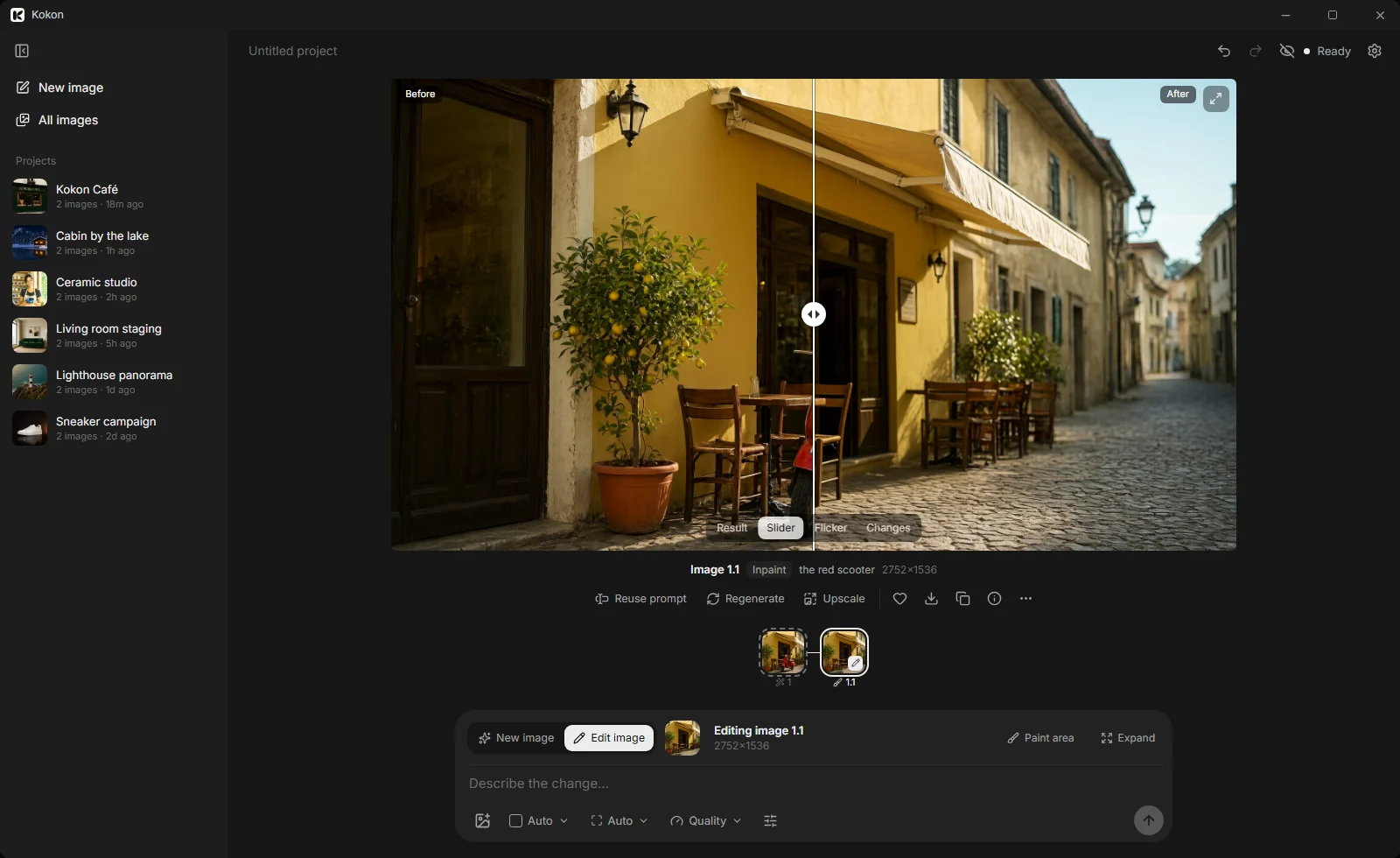
- Edit: drop or paste a photo, describe the change, press Enter. The result appears as a new version; drag the slider to compare before and after.
- Edit only one area: click Paint area, brush over the part to change, then choose Change, Remove, Replace or Add. Pixels outside the brush stay exactly as they were.
- Expand: click Expand to extend the photo beyond its borders, to any ratio.
There are only three quality levels: Fast (~1 MP), Balanced (~1.5K) and Quality (native 2K). Resolution, memory use and upscaling are chosen for your GPU.
Prompts that work well
| Edit | Example prompt |
|---|---|
| Remove | "Remove all the people from the beach" |
| Replace | "Replace the yellow armchair with a deep green velvet sofa" |
| Relight | "Make it a snowy winter night, warm light glowing from the windows" |
| Text | "Change the gold sign text to 'KOKON CAFÉ' in the same lettering" |
| Restyle | "Turn it into a hand-painted watercolor illustration" |
| Product shot | "Place the sneaker on wet black stone with a soft orange rim light" |
Say what should change and, when it matters, what should stay: "…keep the person and the composition the same". For small objects, paint the area first: it is more reliable than describing where the object is.
How fast is it?
Measured with Qwen-Image 2.1 Turbo (8 steps):
- RTX 5070 Ti (16 GB): about 22 s for a new 1.5K image, about 40 s at native 2K, 25 to 55 s for an edit.
- RTX 5070 (12 GB): works with the 12 GB preset, a little slower than the 5070 Ti.
- M2 Pro, 16 GB: about 4 minutes for a 1-megapixel image.
Kokon measures your machine with the first image and shows realistic time estimates from then on.
Troubleshooting
- "Out of memory": choose Fast or Balanced, close other GPU-heavy apps, or run setup again and pick a lighter preset.
- The first image is slow: the model loads once (and Vulkan compiles its GPU programs on first use). Later images are faster.
- Something else: Settings → Diagnostics → Copy, then open an issue with the report.
Use it from an AI agent
Kokon includes an MCP server, so Claude Code, Cursor or any MCP client can create and edit images on your GPU without an API key. See free local image generation for Claude Code and MCP.
License notes
Kokon is open source (AGPL-3.0). Qwen-Image 2.1 and its Turbo model are under the Qwen Research License: research and evaluation only, no commercial use without a license from the Qwen team. Kokon is an independent project, not affiliated with Alibaba.